スクリプトを作成する
Overte's robust JavaScript API provides the tools for you to build great content and experiences, whether the user is in VR or on Desktop.
In this section, you can find simple code samples to do common tasks in Overte. To see these code samples in action, copy the code to a file, testScripts.js, saved somewhere on your computer.
Note
Entity scripts, unlike interface scripts, are in containing functions. The example scripts here cannot be attached to an entity (and be used as an entity script) unless they are in a containing function function() {}.
On This Page:
Write to the Debug Window
This is an example of an interface script and cannot be attached to an entity. It shows you how to print something to the debug window . In this example, we'll start with a simple "Hello, World" script.
"use strict";
print("Hello, World");
Copy and paste this in a file
testScript.jsand save it on your computer.When you load and run this script, it will write the words "Hello, World" to the 'Debug Window' in Overte.

Create an Entity
Instead of using the Create app to add an entity, you can create one using an interface script.
"use strict";
// Get your position in the domain, so that the cube is spawned in front of you
const position = Vec3.sum(MyAvatar.position, Quat.getFront(MyAvatar.orientation));
const properties = {
    type: "Box",
    name: "ScriptBox",
    position: position,
    color: { red: 255, green: 0, blue: 0 }
};
const entityID = Entities.addEntity(properties);
print("Entity added");
Copy and paste this in a file
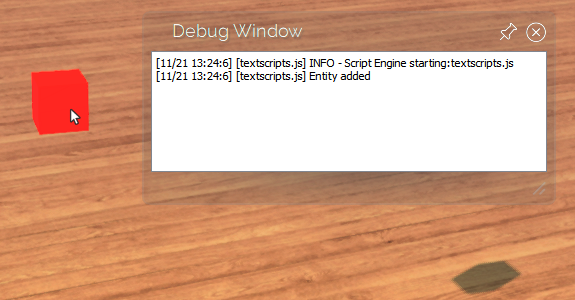
testScript.jsand save it on your computer.When you load and run this script, it will locate your avatar in the domain, create a new entity based on the customized properties that you set, then print a line to the 'Debug Window'. In this case, the entity will be a red box.
Edit an Entity
To manipulate an entity's properties, you can use Entities.editEntityin an interface script.
"use strict";
const entityID = Entities.addEntity({
    type: "Box",
    position: Vec3.sum(MyAvatar.position, Quat.getFront(MyAvatar.orientation)),
});

let properties = Entities.getEntityProperties(entityID, ["color"]);
print("Entity color: " + JSON.stringify(properties.color));

Entities.editEntity(entityID, {
    color: { red: 255, green: 0, blue: 0 }
});
properties = Entities.getEntityProperties(entityID, ["color"]);
print("Entity color: " + JSON.stringify(properties.color));
Copy and paste this in a file
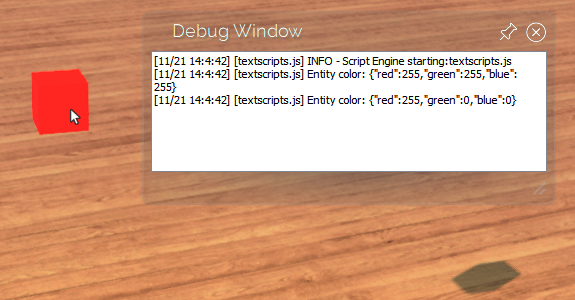
testScript.jsand save it on your computer.When you load and run this script, it will locate your avatar in the domain, create a new entity based on the customized properties that you set, then print the color of that entity to the 'Debug Window'. Then, the script changes the color of the entity to red, and prints the new color in the 'Debug Window'.
Note
In these examples we include "use strict" on the first line. Please include this at the start of all of your scripts, as it will alert you to mistakes in your code and in some cases make your script run faster. See Strict mode for more information.
See Also