Get Started with Scripting
Overte has a powerful scripting interface, in fact many of the features you might use whilst exploring Overte's worlds run on the scripting engine. The tablet you use to access apps, the community apps themselves, even the entities which make up much of the world; all of them are powered by scripts. You can modify many of these existing scripts, and even write your own scripts to reshape the Overte experience into your own.
This page ensures that you know what type of script to use and helps you get started running your own simple scripts.
JavaScript Basics in Overte
Overte scripting runs on the V8 scripting engine, with support for both JavaScript and WebAssembly. To access the Overte API you will need to use JavaScript.
Note
Note that any functionality that runs around web pages (such as cookies, local storages, or databases) does not work with 3D environments such as Overte. For this reason, you cannot use JavaScript frameworks such as Angular, React, Express, jQuery, Vue, etc.
You are likely to interface most with these Overte APIs:
API(s) |
Description |
|---|---|
Lets you manipulate the entities around you, as long
as you have permissions to do so. This means you can
add, remove, and edit entities. Everyone has access
to |
|
Lets you get information on an Avatar, or manipulate your own client-only MyAvatar. The information here will always be the avatar information of the client running the script. AvatarList and AvatarManager are basically the same. |
|
Allows you to connect callbacks from your client to a script,
such as functionality that is dependent on time
( |
There are many other APIs available, which we encourage you to make use of as you become more comfortable scripting in Overte.
Types of Scripts
Script Type |
Description |
|---|---|
Interface Script |
Interface scripts run as long as you have Interface running. With these scripts, you can perform one-time creation tasks or modify the user experience with new menus, overlays, tweaks, plugins, and extensions. |
Assignment Client Script |
Assignment client scripts coordinate the actions between entities and avatars in your domain. These scripts continue to run even when you shut down Interface. |
Avatar Script |
Avatar scripts run on an avatar and can give it unique effects, such as flowing hair. |
Client Entity Script |
Client entity scripts are scripts attached to entities that run locally in response to each user in a domain. With these scripts, you can customize what happens when a user encounters an entity by loading it into view. |
Server Entity Script |
Server entity scripts are scripts attached to entities that do not require a user to trigger. These scripts control entities so that their behavior is seen or heard by everyone in the domain. |
Scripting Permissions
Each domain owner has the ability to restrict create and edit permissions. If the script you want to run adds or edits entities and you don't have the permission to do so, you won't see any objects created or changed. However, you will still see the script listed in the Running Scripts window.
Running Scripts Window
The Running Scripts window can be used to load, run and stop scripts from a URL or from a local file. Overte also provides a number of sample scripts for you to try out.
To open the Running Scripts window, go to Edit > Running Scripts or press Ctrl + J on your keyboard.
Sample Scripts
Overte comes with a collection of scripts designed to improve your experience as a user and provide tools for developing your own content. We encourage you to look at these scripts as a resource to learn how to code your own.
Note
Loading (or running) a script lets you test the functionality and see how it behaves. If you want to view the actual code, you will need to open the file in the text editor of your choice. In the 'Running Scripts' window, click 'Reveal Scripts Folder' and browse to the JavaScript file that you want to view.
These are the scripts we have available:
Scripts Folder |
Description |
|---|---|
|
These scripts were built to run on Android devices. |
|
These scripts were contributed by the community to improve the default Overte experience. |
|
These scripts were created for internal use and debugging, but are available as advanced developers may find them useful when creating content. These scripts are not "entry-level" and are not guaranteed to work or be documented. |
|
These scripts create external tools that simplify scripting in Overte. For example, the AppUI module helps you create a tablet app, while the Request module processes HTTP requests. |
|
These scripts are critical to the stability and usability of Overte. Making changes to these scripts is not recommended, nor is it easy, as you may need 'administrative' privileges. |
|
These scripts provide examples of what you can do using scripts in Overte. Examples include: creating butterflies, making your avatar clap, and adding ambient sound to your domain. |
Load and Run a Script
To run a script:
Open the 'Running Scripts' window.
For scripts hosted on the internet, click 'From URL'. Enter the URL of your script file and click 'OK'.
For scripts on your local computer, click 'From Disk'. Browse to your script file and click 'Open'.
To load a sample script, browse to the script at the bottom of the 'Running Scripts' window.
Note
Any scripts you load from the 'Running Scripts' window will load automatically the next time you start Overte.
Reload or Stop a Script
To reload or stop a script, open the 'Running Scripts' window and do one of the following:
To reload all running scripts, click the 'Reload All' button at the top of the 'Running Scripts' window.
To reload a specific script, click the circular arrow next to the script.
To stop all running scripts, click the 'Remove All' button at the top of the 'Running Scripts' window.
To stop a specific script, click the 'X' next to the script.
Note
By stopping a script, you are in effect removing that script from the running list. You will need to find and load that script again to have it appear in the list. If you Remove All scripts you can get the default scripts back by selecting Load Defaults
Scripting Console
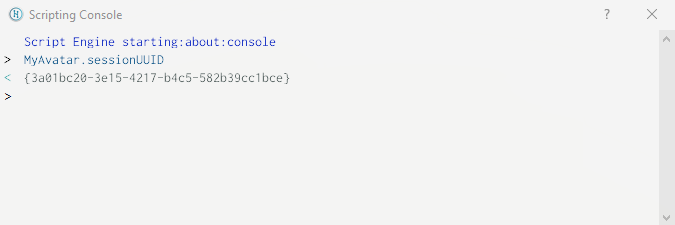
The Scripting Console lets you test and run short script snippets quickly in Overte to see how they work. To open the console, go to the 'Developer menu', then Scripting > Console. If the 'Developer' menu is not visible, first go to the 'Settings' menu and click 'Developer' Menu.
Debug Window
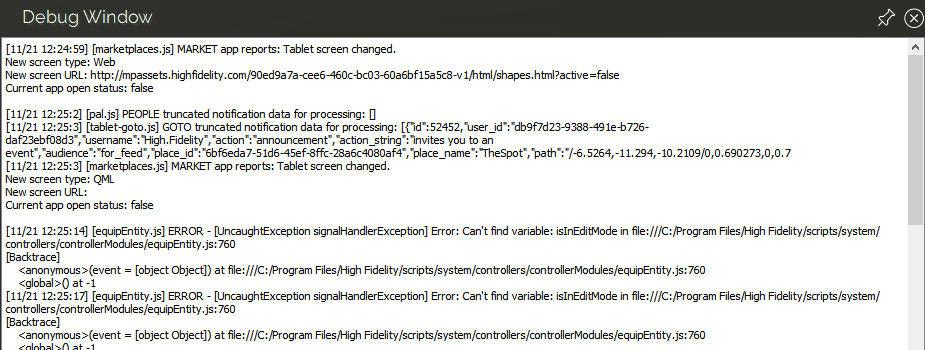
The Debug Window shows the output generated by your running scripts. This lets you watch the script(s) in action and make sure that it is running as you intended. If the script fails, the debugger can help you identify what went wrong, and point you to specific lines of code where the error occurred. To open the Debug Window, go to the 'Developer' menu, then Scripting > Script Log (HMD Friendly). If the Developer menu is not visible, first go to the 'Settings' menu and click 'Developer' Menu.
Note
To debug a server entity script you should instead use the Server Entity Script Log to view the output of your script.
Voir Aussi